
Getting Started
Radiowecker turns your iPhone into a radio alarm clock for your nightstand: wake up to internet radio or Apple Music, fall asleep with the sleep timer – and in between, the display stays dark.
The app has two tabs:
- Alarms – your list of alarms with the quick buttons Turn Off Screen and Sleep Timer.
- Settings – language, notifications, radio buffer, fallback sound, sleep timer, turn off screen, night light and more.
- Open Radiowecker and allow notifications when asked. You can also grant the permission later under Settings → Notifications → Grant Permission.
- Create your first alarm (see chapter 2).
- Set up the Shortcuts automation so the alarm starts reliably even when your iPhone is locked (see chapter 3).
You can switch the app language (German/English) at any time in the Settings tab.
Creating & Editing Alarms
In the Alarms tab, tap + at the top right to create a new alarm. To edit an alarm, simply tap it in the list.
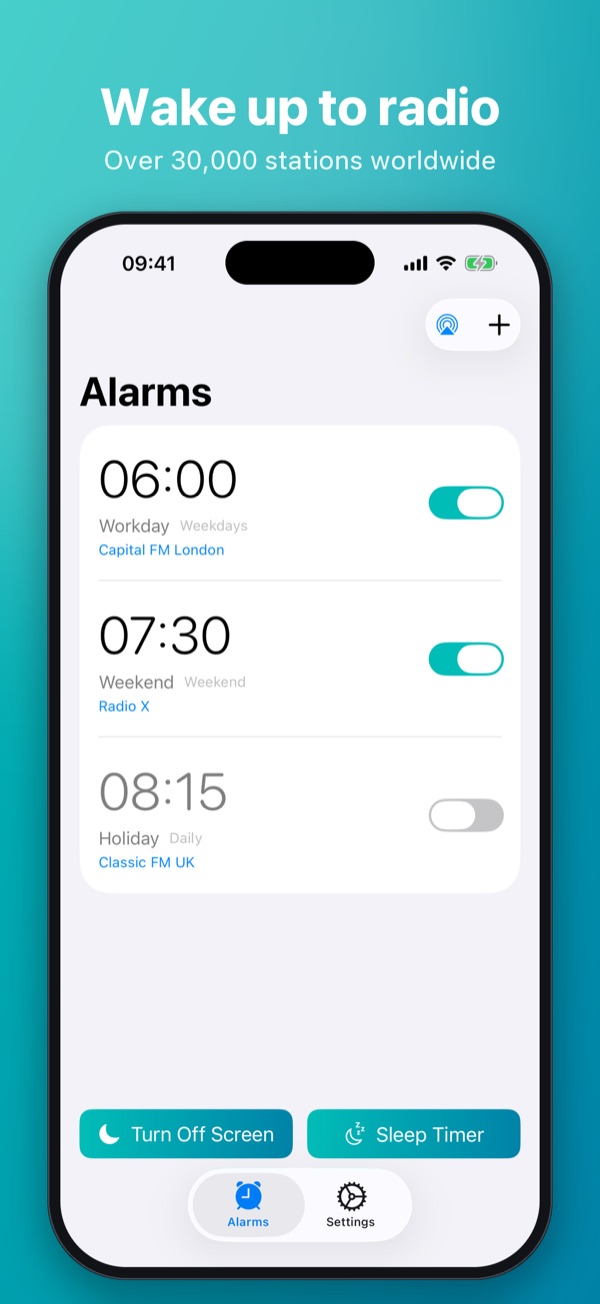
Alarm list
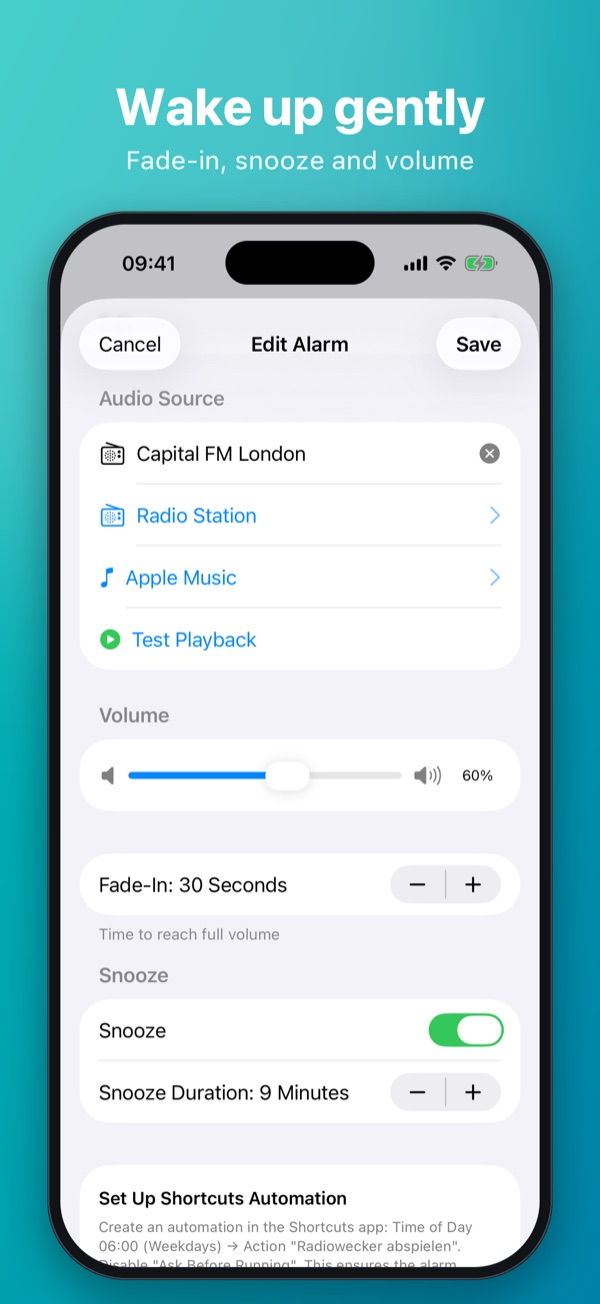
Edit alarm
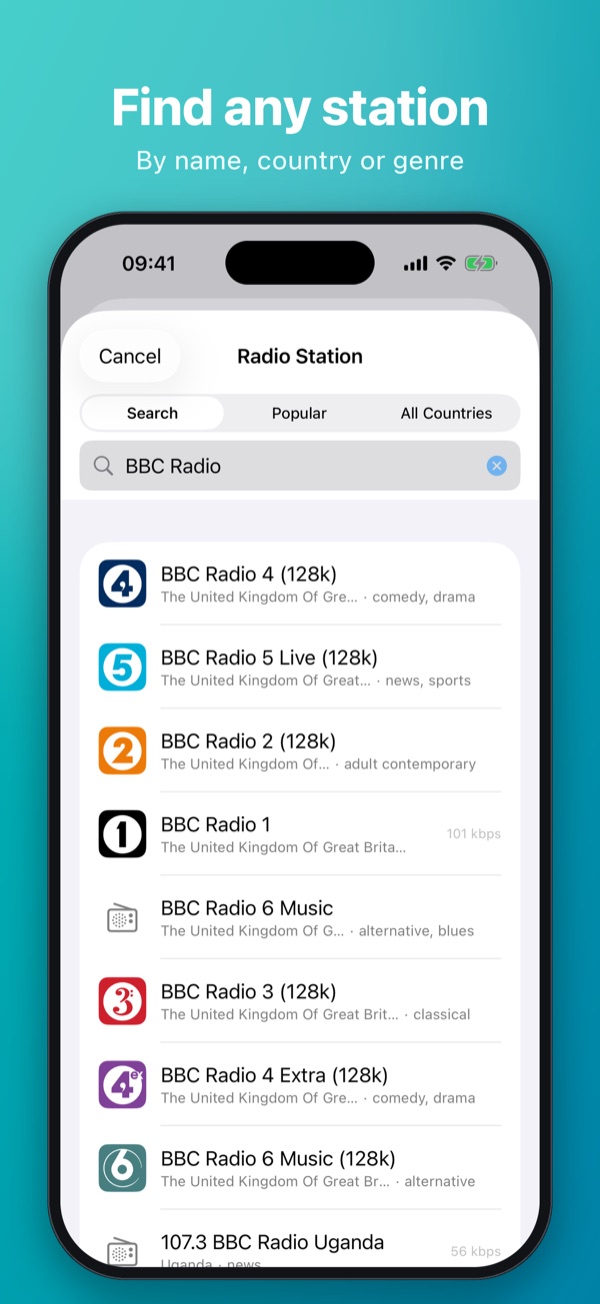
Station search
The settings in detail
- Name: optional name, e.g. "Work" – shown in the list, the widget and the alarm screen.
- Alarm Time: the time you want to wake up.
- Repeat: Once, Daily, Weekdays, Weekend – or any individual days via Edit.
- Audio Source: an internet radio station (search by name, country or genre in the Search, Popular and All Countries tabs) or a song or playlist from Apple Music. Use Test Playback to listen to your choice right away.
- Volume: the target volume of the alarm (0–100%).
- Fade-In: 0 to 300 seconds – the music gradually gets louder for a gentle wake-up.
- Snooze: on/off and a snooze duration of 1 to 30 minutes.
Tap Save to store the alarm and schedule it automatically. Use the switch in the list to turn an alarm on or off; to delete it, swipe left or tap Delete in the edit screen.
If the radio stream is unavailable at alarm time (e.g. no internet), Radiowecker automatically plays your fallback sound. No oversleeping.
Important: Waking Up Reliably
iOS strictly limits what apps can do in the background. To make sure your alarm rings right on time and reliably – even when your iPhone is locked – the app recommends an automation in Apple's Shortcuts app. A matching hint with your alarm time is shown right in the alarm editor.
Setting up the automation
- Open the Shortcuts app (the Open Shortcuts App button in the alarm editor takes you straight there).
- Go to the Automation tab and tap + or New Automation.
- Choose Time of Day and set exactly your alarm time (e.g. 06:30) and the repeat that matches the alarm (e.g. weekdays).
- Select Run Immediately (or turn off Ask Before Running).
- Add the action Radiowecker abspielen (Radiowecker's "play alarm" action).
- Done! From now on, the automation automatically starts the due alarm at alarm time.
The time and days of the automation must match your alarm in the app – the "Radiowecker abspielen" action only starts alarms that are enabled and due at that moment (±5 minutes).
Leave Radiowecker open overnight and use Turn Off Screen (see chapter 6). Connect your iPhone to a charger and make sure the sound is not muted and the volume is high enough.
When the Alarm Rings
At alarm time, the music starts – with your chosen fade-in – and the alarm screen appears. It shows the cover art and current song, the station logo and the time in large digits. You have two options:
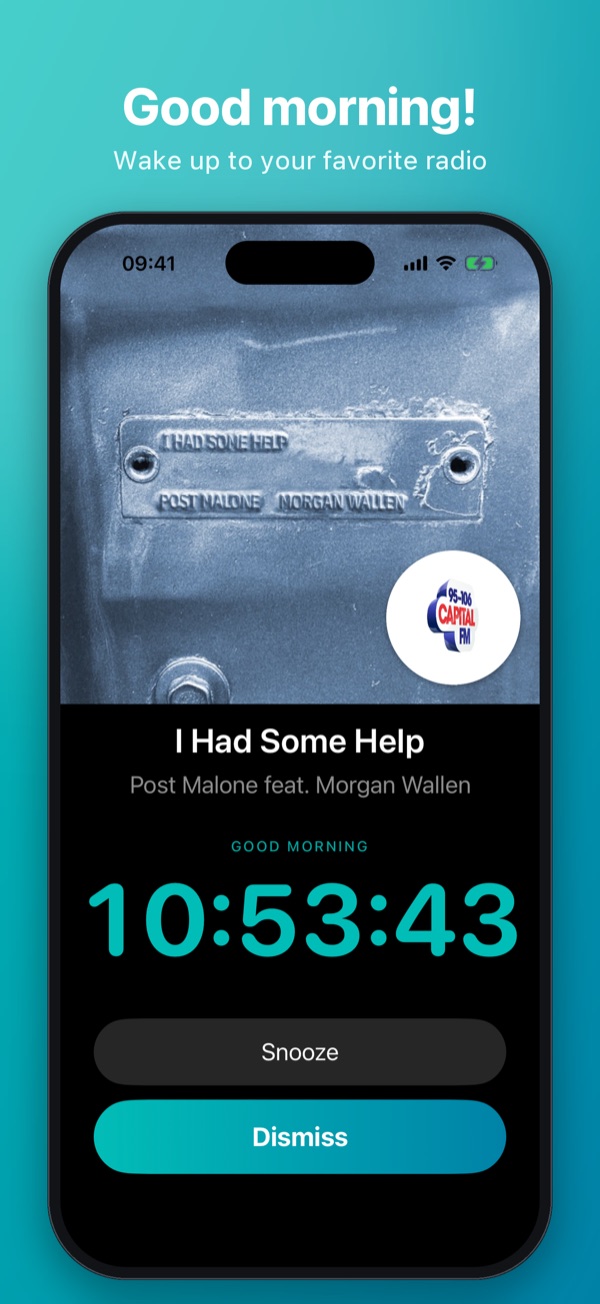
Alarm screen
- Snooze – the music stops, the screen goes black and a countdown shows the remaining snooze time. Then the alarm rings again.
- Dismiss – the alarm ends.
If the app is running in the background, you also get a notification with the actions Snooze and Dismiss right on the Lock Screen.
Sleep Timer
The sleep timer lets you fall asleep to radio or music – when the time is up, playback fades out gently and stops.
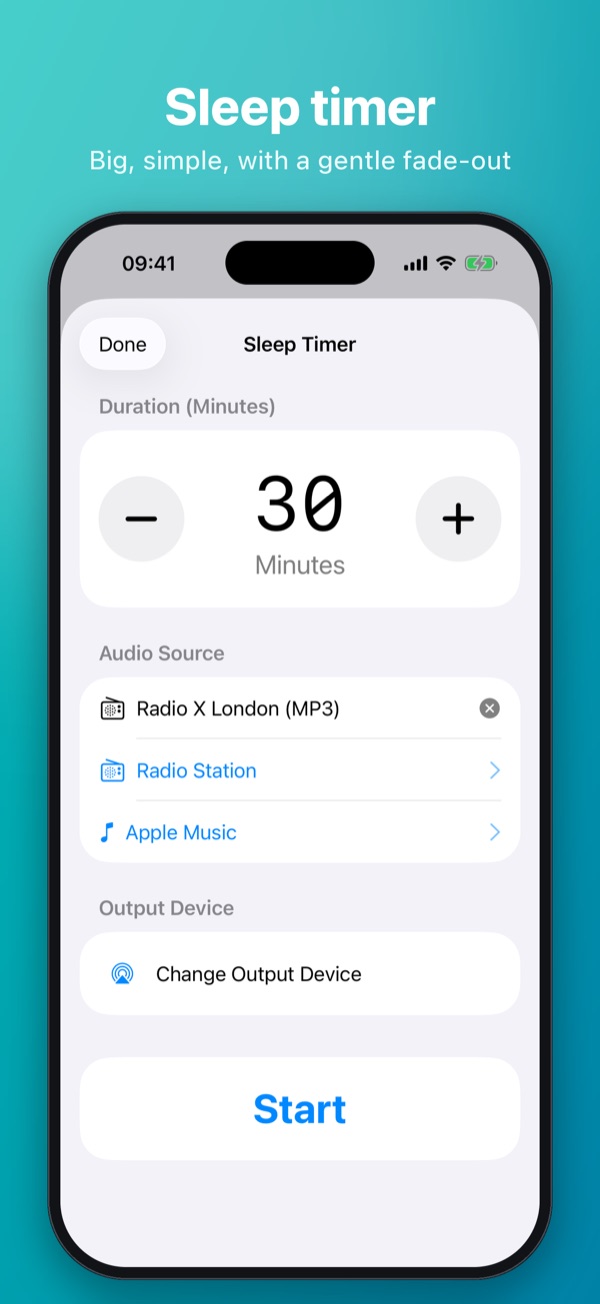
Sleep timer
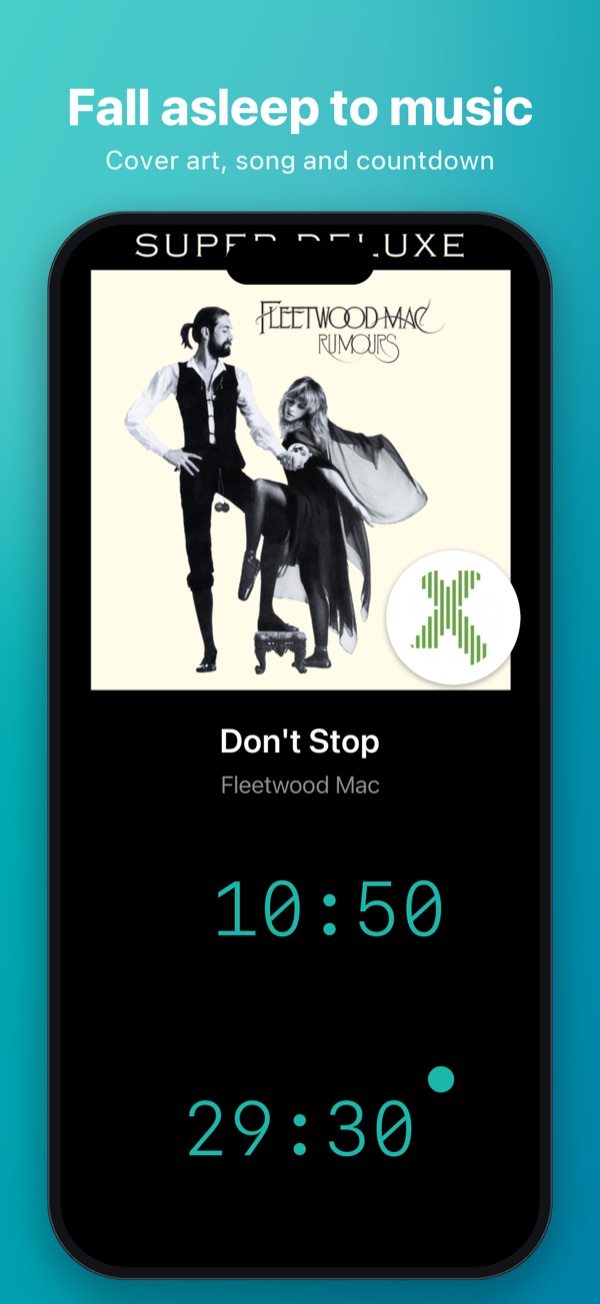
Timer running
- In the Alarms tab, tap the Sleep Timer quick button.
- Choose the duration in minutes, the audio source (radio station or Apple Music) and, if needed, the output device.
- Tap Start – the screen goes black automatically, and the cover art, song and remaining time are shown discreetly.
You can set the defaults for duration (1–120 minutes), volume, fade-out time (0–120 seconds) and your preferred audio source under Settings → Sleep Timer. That's also where you choose the output device (e.g. HomePod via AirPlay).
The sleep timer can also be started from a shortcut with any number of minutes – ideal for your bedtime routine. Details in chapter 9.
Turn Off Screen (Nightstand Mode)
The Turn Off Screen quick button in the Alarms tab switches the display to deep black with a dimmed clock – perfect for your nightstand. The app stays active and ready to wake you.
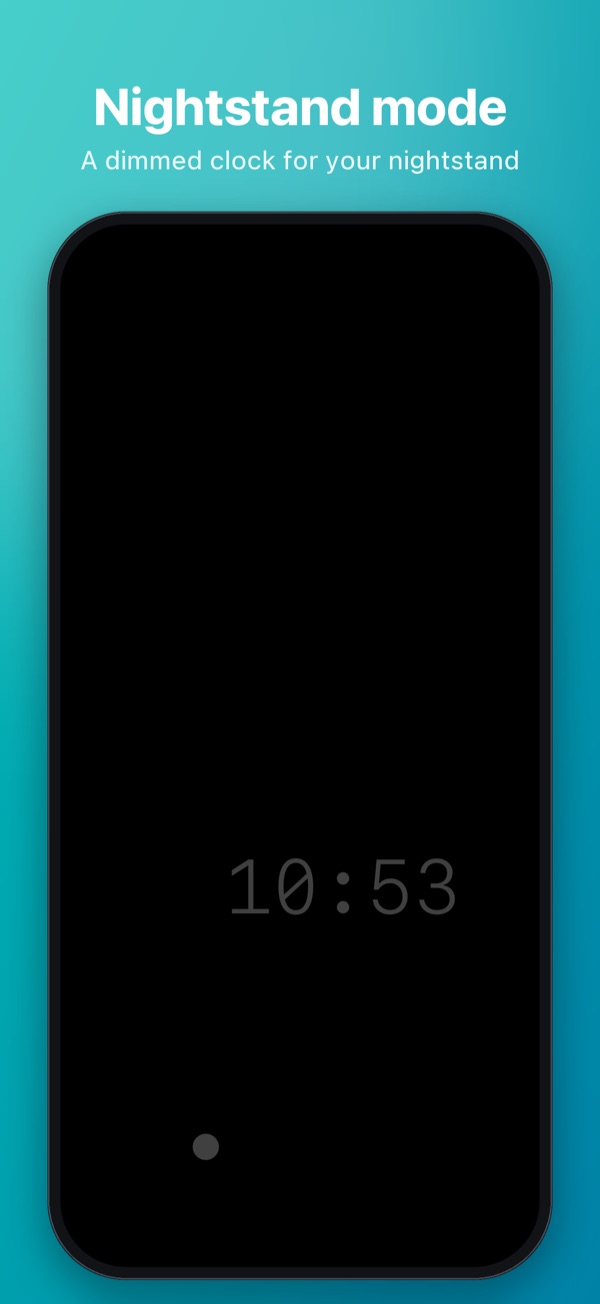
Nightstand mode
What you see on the black screen
- While snooze, a night light timer or the sleep timer is running, its countdown is shown discreetly.
- While music is playing, the cover art, song and artist of the current track appear.
- Tap the screen to show the controls: Night Light, Turn On Screen and – if running – Stop Sleep Timer. The controls disappear again after three seconds without input.
Options under Settings → Turn Off Screen
- Keep Screen On: prevents auto-lock while the black screen is shown – so the app stays ready all night (charger recommended).
- Hide Status Bar: hides the clock and battery indicator – for complete darkness.
- Show Ball: a small ball wanders across the display as a screensaver.
- Show Time: shows a dimmed clock on the black screen – just like a classic radio alarm clock.
Night Light
The night light uses your iPhone's flashlight as a soft light source – for example when you need to get up at night. It is part of the full version.
- Use Turn Off Screen and tap the black screen.
- Tap the yellow Night Light button – the flashlight turns on at the brightness you set.
- The night light turns off automatically when its timer runs out; the countdown is visible on the screen. Tap Turn Off Night Light to end it immediately.
Set the duration (1–60 minutes) and brightness (5–100%) under Settings → Night Light.
Widgets
The widgets show your next active alarm with a live countdown – without opening the app. Widgets are part of the full version.
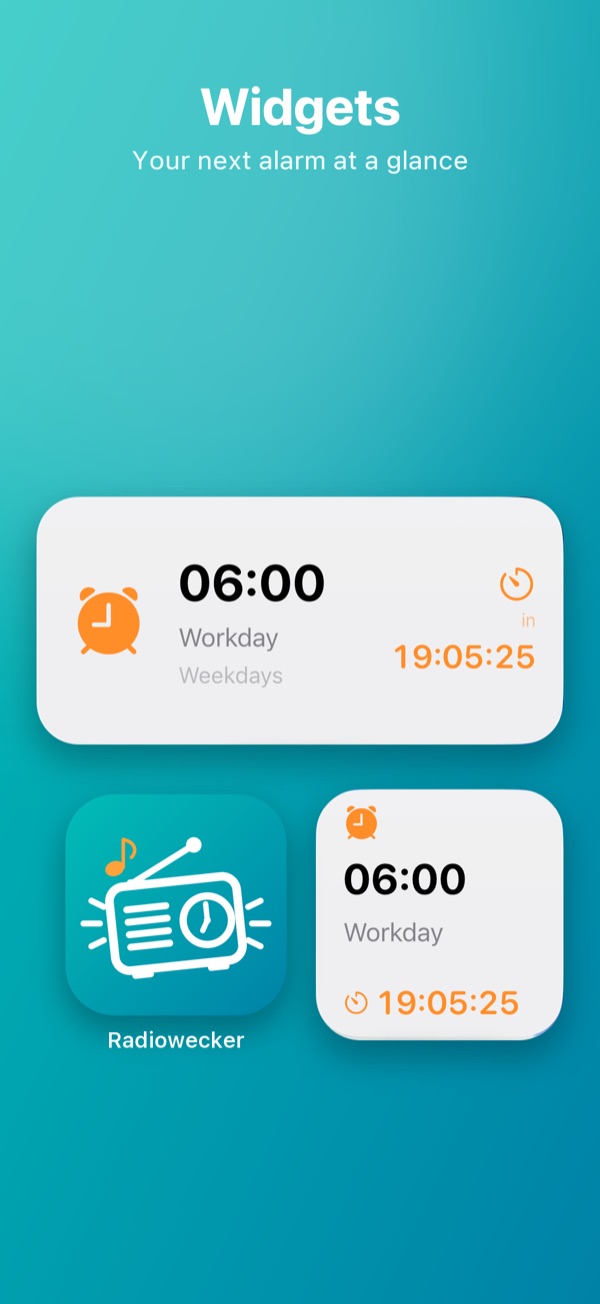
Widgets
Available styles
- Home Screen small: alarm time, name and countdown.
- Home Screen medium: additionally shows the repeat (e.g. "Weekdays").
- Lock Screen rectangular, circular and inline: your next alarm right next to the clock.
Adding a widget
- Touch and hold the Home Screen or Lock Screen and tap + or Customize.
- Search for Radiowecker.
- Choose the size you want and place the widget.
Siri & Shortcuts
Radiowecker provides two actions for Apple's Shortcuts app. You'll find them in the Shortcuts app under "Radiowecker" and can use them in your own shortcuts and automations.
The actions and Siri phrases are currently available in German only. The actions work the same with any device language – only their names in the Shortcuts app are German. The translations are shown below.
Action "Radiowecker abspielen" (Play Radiowecker)
Starts the next due alarm: the action checks whether an enabled alarm is due at the current time (±5 minutes, matching weekday) and then plays its alarm sound. This is the building block for the wake-up automation from chapter 3.
Siri phrases (German):
- "Starte Radiowecker" (Start Radiowecker)
- "Radiowecker abspielen" (Play Radiowecker)
- "Weck mich mit Radiowecker" (Wake me with Radiowecker)
Action "Einschlaftimer starten" (Start Sleep Timer)
Starts the sleep timer with your configured audio source and turns off the screen. The action has a parameter Minuten (minutes):
- If no value is given, Siri or the shortcut asks you for the number of minutes.
- The minutes can also be a variable from a shortcut – e.g. from a "15 / 30 / 60 minutes" menu or depending on the time of day.
Siri phrases (German):
- "Radiowecker Einschlaftimer starten" (Radiowecker start sleep timer)
- "Einschlaftimer starten mit Radiowecker" (Start sleep timer with Radiowecker)
Ideas for your own automations
- Wake-up automation: Time of Day 06:30 (weekdays) → "Radiowecker abspielen" – see chapter 3.
- Bedtime routine: when the Sleep Focus turns on → "Einschlaftimer starten" with 30 minutes.
- Good night shortcut: a shortcut on your Home Screen that asks for the number of minutes and then starts the sleep timer.
For automations, always select Run Immediately (or turn off "Ask Before Running") so they run without asking – especially important for the wake-up automation.
Settings
Language
Switch between German and English – takes effect immediately in the app and widgets.
Notifications
Shows the permission status. Use Grant Permission to allow notifications later; if you declined them, turn them on in the iOS Settings under Notifications → Radiowecker.
Radio Buffer
The buffer (5–60 seconds, default 15) determines how much of the stream is preloaded. A larger buffer helps with frequent dropouts; a smaller value starts playback faster.
Fallback Sound
The sound that plays when the alarm sound can't be played (e.g. the stream is unavailable) or when an alarm has no audio source. You can choose from:
- Built-in Sound – the app's own alarm tone
- iOS Ringtones, Alert Tones and System Sounds – searchable, with instant preview
- Apple Music Song – a song from Apple Music
- All Downloaded Songs (Shuffle) – shuffle your downloaded music
Sleep Timer
Default duration, volume, fade-out time, audio source and output device (AirPlay/HomePod) for the sleep timer – see chapter 5.
Turn Off Screen & Night Light
The options for nightstand mode (chapter 6) and the night light (chapter 7).
About
Version, developer and links to the user manual, website, privacy policy and terms of use.
Full Version
Radiowecker is free to use – with one alarm. The full version is a one-time purchase (no subscription) that permanently unlocks:
- Unlimited alarms
- All widgets for the Home Screen and Lock Screen
- Night light
- Open Settings and tap Full Version.
- Tap Buy Full Version and confirm the purchase via the App Store.
- Done – all features are unlocked immediately.
The purchase is linked to your Apple Account. Use Restore Purchases in the settings to get the full version back on any of your devices at no extra cost.
Any questions? Feel free to email me at developer@ck1969.de.